Mac Apps

Cameras

Support

  Shopping Cart
CardRaider
Zero-Effort Photo Recovery

Digital photography opens up a world of possibilities, including corrupt memory cards or accidentally erasing your pictures. CardRaider automates the process of restoring lost JPEGs, RAW files and movies.
Instant Order Fulfillment
Free Upgrades for Life
Fast, Friendly Support
v2.0.9(3.8 MB)
Features
Instructions
FAQ
Testimonials
Download

Using CardRaider:

To use CardRaider for recovering photos, follow these steps:

Connecting to your memory card:

Some cameras allow memory card access when connected to your Mac via the USB cable supplied with the camera. With other camera models, this is not possible and a memory card reader is required.

To determine if a card reader is required, follow these steps:

  1. Connect your camera to your Mac using the USB cable supplied with the camera.

  2. Turn on your camera and switch it to Preview mode. (Also called Playback mode, PC Mode, or Review mode.) You may also want to review your camera's manual and follow the instructions for attaching the camera to a computer.

  3. NOTE: Attaching the camera may cause iPhoto or other camera utilities to automatically appear. You can safely ignore or quit these programs.

  4. Double-click CardRaider.

  5. You should see your camera's memory card appear in the Card menu as shown below:


  6. If you don't see your camera appear, and it continues to say "No Cards Found", then you will need to use a memory card reader. If you do see your card appear, then skip to Scanning Your Card.

Buying a Memory Card Reader

If you need to get a card reader, check out our card reader suggestions.

Using a Memory Card Reader

To use a memory card reader, attach the reader to an available USB port. Turn your camera off. Then, following the instructions for your camera, carefully remove the memory card from the camera, and insert it into the proper slot of the card reader.

When you launch CardRaider, you should see the memory card appear in the Card menu as shown below:


The CardRaider Toolbar and Action Menu:

Most CardRaider features are accessed by clicking on the toolbar as shown above:

Other features are accessed in the Action menu as shown below:


Scanning Your Card:

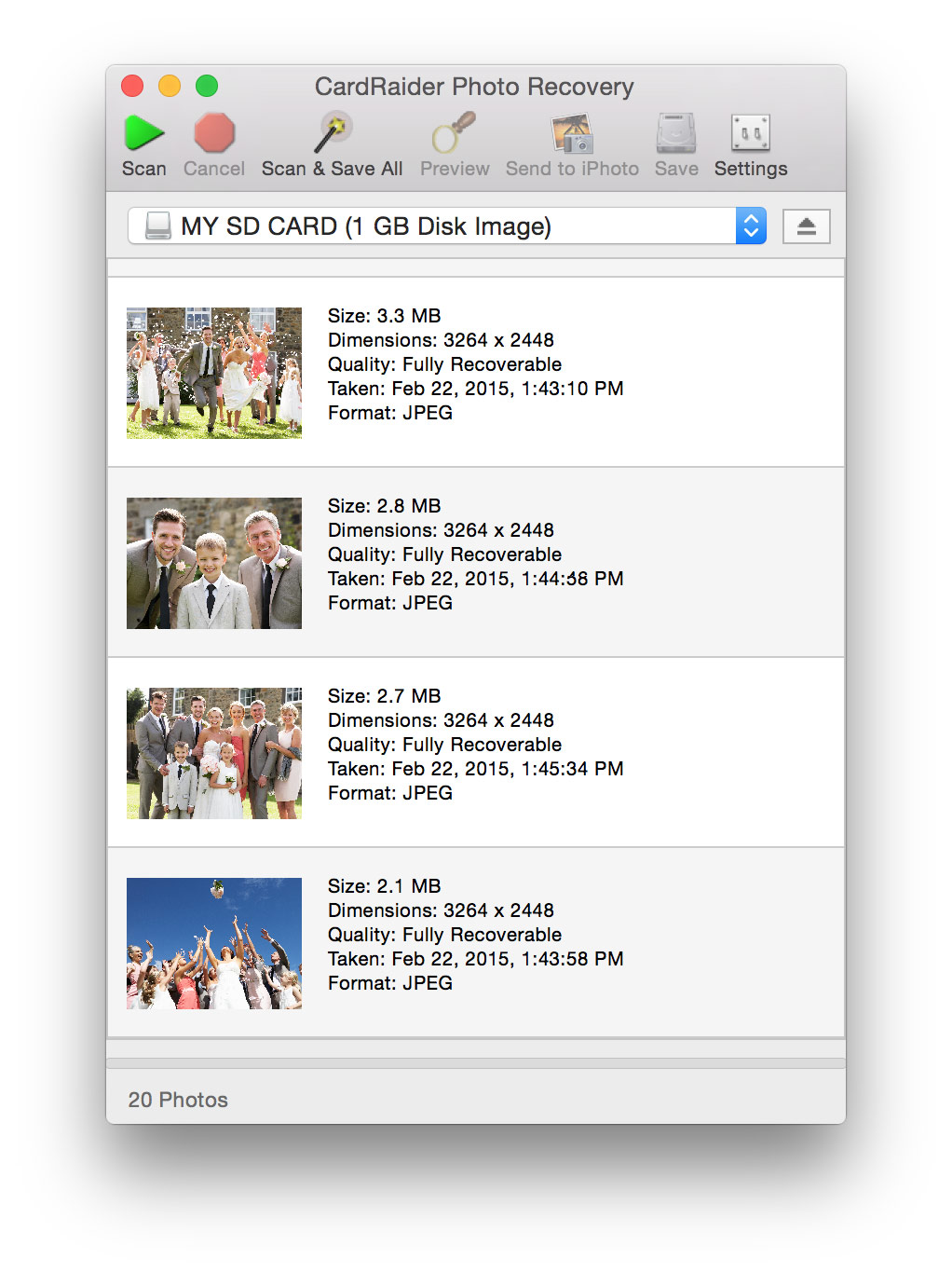
To start searching your card for deleted photos, click the Scan button.
NOTE: OS X 10.8 (Mountain Lion) users will at this point be prompted for the computer's adminstrator password. This is required due to new security features of OS X 10.8.

CardRaider will show you each photo as it is found along with the photo's size, capture date, dimensions, and format.

For very large cards, it make take several minutes for the scan to complete.

To cancel a scan in progress, click the Cancel button.


CardRaider will let you know when the scan is complete with the following message.


Recovering the Photos:

Selecting a Photo:

To select a photo from the list, click it once so that the row is highlighted. You can select multiple photos by holding the shift or Apple key while clicking.

You can also choose Select All from the File menu to select all the photos in the list.


Previewing a Photo

You can see larger versions of the photos by double-clicking the thumbnail images, or by selecting an image and then clicking the Preview button.

A Preview window will appear showing you a detailed photo. You can make this window larger by dragging in the lower-right corner or clicking the green Zoom button in the top-left.


Saving a Photo or Movie:

To recover to your computer, select one or more items and click the Save button.

If multiple photos are selected, you will be prompted to choose a folder to save the photos into. The files will automatically be named according to their capture date.

Sending to iPhoto:

You can send selected photos directly to iPhoto by clicking the Send to iPhoto button. Photos sent to iPhoto will automatically be added to a Recovered Photos album.

Other Recovery Options:

Dragging:

You can also save photos by dragging them from the list, into the Finder or other programs as shown below.


Scan & Save All:

Click the Scan & Save All button to automatically scan a card and recover all found images to your disk in one step.


You can also choose to send all found images to iPhoto by selecting Scan and Send All to iPhoto from the Action menu.

Permanently Deleting Photos (Erasing Free Space):

Selectively Deleting Photos:

Permanently deleting a photo means that it can no longer be recovered by programs like CardRaider. To permanently delete photos, first delete them using the delete feature on your camera. Then, scan the card using CardRaider.

Select one or more photos in the list and choose Permanently Delete Photo from the Action menu.


Erasing All Free Space:

To permanently erase all deleted photos on card, select Erase All Free Space from the Action menu.

CardRaider Settings:

Click the Settings button to show the CardRaider Preferences window.


The following options are configurable:


Only find images that have been deleted: Normally, CardRaider only looks for deleted images. To look for all images, even images which are still visible to the camera, uncheck this option and start a new scan.

Ignore incomplete (corrupted) images: Normally, CardRaider ignores images which do not appear to be complete. To show incomplete images, uncheck this box and start a new scan.

Use safe mode: Scanning an extremely corrupted card can sometimes CardRaider to crash. If this happens, enable this option and try again. Safe mode does only what's necessary to extract your JPEGs. Safe mode will not find movies or RAW files.

Play Sound Effects: To turn off CardRaider's sound effects, uncheck this box.

Switching and Ejecting Cards:

If more than one card is present, you can select which card to use in the Disk menu.


Before you disconnect your camera or card reader, you should use the eject button to the right of the Disk menu to eject the card.

Supported Image Formats:

In addition to the standard JPEG format, CardRaider will find and recover the following professional "RAW" formats:

File Extension    Format
CRW Canon Raw
CR2Canon Raw 2
TIFCanon Raw TIFF
NEFNikon Raw
NRWNikon Raw
MRWKonica Minolta Raw
RAFFuji Raw
ORFOlympus Raw
PEFPentax Raw
ARWSony Alpha RAW 1 & 2
SRFSony Raw
SR2Sony Raw 2
RAWPanasonic Raw
RW2Panasonic Raw 2
DCR
KDC
K25
Kodak Raw
MOSLeaf Raw
X3FSigma Raw
DNGDigital Negative (Adobe Raw)
3FRHasselblad H3D Raw
ERFEpson Raw
RAWLeica Raw
RWLLeica D-Lux Raw
MEFMamiya Raw

Also see the Raw Formats Camera Guide for details.

Supported Movie Formats:

CardRaider will recover the following movie formats:

File Extension    Format
MOVQuickTime Movie
AVIAVI Movie
MPGMPEG 1 and 2
MP4MPEG 4
3GP3G Mobile Phone
about us  |   faq  |   contact us  |   download  |   purchase  |   freeware  |   rss feed  |   twitter  |   blog  |   terms of use / privacy  |  

© 2013 Ecamm Network, LLC. Mac, Leopard, Snow Leopard, Lion, Mountain Lion, iChat, iPad, iPhone, iPod Touch, QuickTime, Mac OS X, iOS, AirPrint, FaceTime, iBooks, MacBook and MacBook Pro are trademarks of Apple Inc. Skype is a trademark of Skype Limited. The Bluetooth word mark and logo are registered trademarks owned by Bluetooth SIG, Inc. and any use of such marks by Ecamm Network is under license.