Mac Apps

Cameras

Support

  Shopping Cart
iGlasses 3
Total Webcam Control

Amazing webcam adjustments and effects in any app, including
Skype, iChat, FaceTime and even web chat.
Instant Order Fulfillment
Free Upgrades for Life
Fast, Friendly Support
v3.3.3(13.4 MB)
Introduction
Instructions
FAQ
Download


Installing iGlasses:

After unzipping the downloaded file, double-click "Install iGlasses". Follow the steps to complete the install. Once installed, iGlasses will be available as a camera choice in your video applications. You may have to quit and relaunch video apps that were already opened prior to the install.

Uninstalling iGlasses:

To uninstall, run the installer (double-click "Install iGlasses") and use the Uninstall button. iGlasses will be completely removed.

Using iGlasses:

After installing, you'll see iGlasses alongside iSight as a camera choice. Select iGlasses as your camera choice and the iGlasses window will automatically appear. It's that simple! See below for app-by-app instructions on selecting iGlasses.


To activate iGlasses, select iGlasses for your camera choice and start the camera if necessary. iGlasses will appear automatically.

Most programs provide a way to switch cameras in the preferences, settings screen, or camera menu. If you don't find iGlasses as a camera choice after installing, make sure you've quit and re-opened the program or browser. If you need help finding out how to switch to iGlasses in your favorite app, we've provided instructions here for most popular programs:
  • FaceTime: Choose iGlasses from the Video menu.

  • iChat/Messages: In the iChat/Messages Preferences screen, choose Audio/Video and then select iGlasses from the Camera menu.

  • iMovie: In iMovie's capture window, choose iGlasses from the Camera menu in the bottom-left corner.

  • Photo Booth: Choose iGlasses from the Camera menu.

  • Skype: In Skype's Preferences screen, choose Audio/Video and then select iGlasses from the Camera menu.

  • Facebook Chat: During a call, choose "iGlasses" from the camera menu at the bottom of the video window.

  • Google Chat: Choose "Mail settings" from the gear icon to access settings, click the Chat tab, and then select the iGlasses camera option.

  • YouTube: While recording video, choose "iGlasses" from the camera menu above the video window.

  • Flash-based Websites: Right-click or control-click anywhere in the video window, and choose "Settings". Select the webcam tab and then select iGlasses from the Camera menu:
         

The iGlasses window appears automatically when the frontmost application's camera is set to iGlasses, and video has started. The window can be minimized to the menubar by clicking on the X in the top left corner of the window. To show it again, click on the menubar icon, which looks like this:

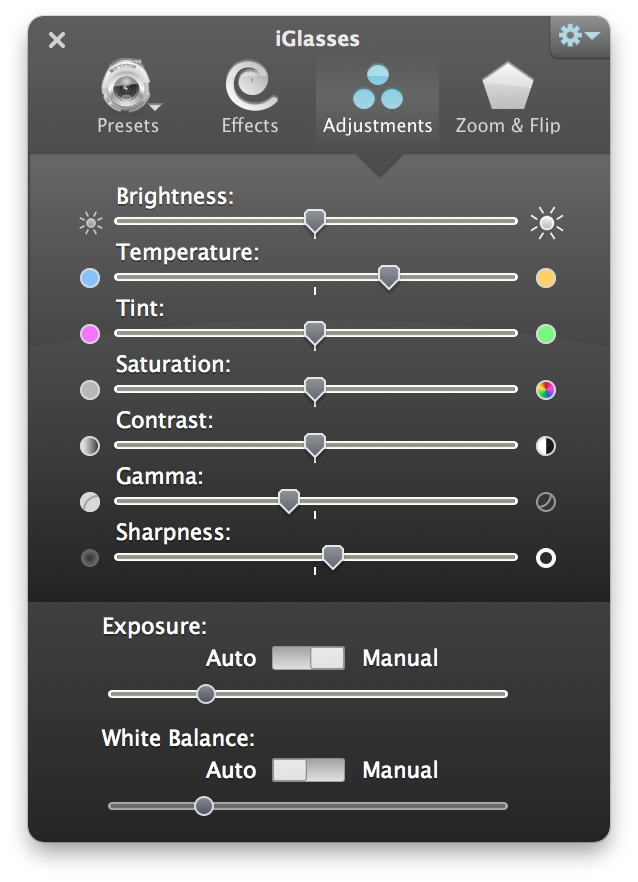
The iGlasses window is composed of four main sections: Presets, Effects, Adjustments, and Zoom & Flip. Make choices here to select an effect, make an adjustment, or zoom and flip your picture. There is also a settings menu, accessible from the gear icon in the top right corner of the window where you can pause your video, choose your source camera, access help, and more.

To return your picture to normal and remove any effects and adjustments, select "Standard" from the settings menu.


Click the Presets button to apply a saved collection of adjustments and effects.

Select "Standard" to remove the current effect and return all of your settings to normal.

Frequently used settings can be saved as presets by selecting "Save Current Settings" from the settings menu. iGlasses also provides some useful presets settings such as "Enhanced". To activate a setting, simply select it from the menu. Presets can also be accessed using the menu in the menubar at the top of the screen.


More than 50 effects are available in the Effects tab. The effects area scrolls left to right. Use the scrollbar or a two finger swipe gesture to move between each page of effects.

If the selected effect has adjustable parameters, the iGlasses window will expand vertically to show controls specific to the effects. The parameters are saved and will be remembered the next time the effect is used. You can return a slider to its default setting by double-clicking it.

Each page of effects includes a "Normal" choice in the center of the screen.

Available effects are:

Space Alien, Nose Twirl, Chipmunk, Lovestruck, Dizzy, Blockhead, Bug Out, Frog Face Tracking (These eight effects are only available in OS X 10.7 and newer.)

Sepia, Black & White, Glow, Comic Book, Color Pencil, Thermal Cam, X-Ray, Pop Art

Bulge, Dent, Twirl, Squeeze, Mirror, Light Tunnel, Fish Eye, Stretch

Neon, Line Overlay, Posterize, Blue Print, Night Vision, Crazy Colors, Dot Screen, Crystallize

Blur, Motion Blur, Zoom Blur, Monochrome, Pointillize, Pixelate, Kaleidoscope, Tracer

Ascii Art, Pinch, False Color, Concert, Tryptamine, Zebra, Compound Eye, Trippy

Share Media, Color Invert, Line Screen, City Lights, Film Stock, Censor, Unsharp Mask, Threshold

About Share Media: Use this effect to replace your webcam video with an image or movie file. Drag an image or movie file into the Effects section of the iGlasses window to automaticaly activate the "Share Media" effect.


The Adjustments screen allows you to enhance your video by fine tuning Exposure, White Balance, Saturation, Contrast, and Gamma. You can also disable your camera's auto-exposure by checking the "Lock Exposure" checkbox. (Lock Exposure may not be available for non-Apple cameras.)

Brightness: Adjust this slider to brighten or darken your image as needed. If it's dark in your room, raise the brightness to add more light.

White Balance: Sometimes your webcam can leave you looking a little blue, and other times a little red in the face. Use the White Balance slider to add warmer or cooler color tones to your picture.

Tint: Tint lets you adjust the colors of the image for when White Balance isn't quite doing the job.

Saturation: The Saturation slider controls the intensity of color in the image. If you're looking a little washed out, try increasing the saturation.

Contrast: Raising the Contrast sharpens the image by enhancing differences in brightness.

Gamma: Gamma correction controls the overall brightness and color curve of the image.

Sharpness: Digitally sharpen your image when you want to look crisp.

Exposure Lock: For built-in cameras, you can use this checkbox to lock the auto-exposure and disable automatic color correction.

Focus and Focus Lock: Users of the Logitech C910/C920 or the external (FireWire) iSight can use iGlasses to control manual focus.

To automatically re-center a slider, double-click on it.


Digital Pan & Zoom: Us the zoom slider to digitally zoom your image. Once you've zoomed in, drag the zoomed area to adjust your shot exactly how you want it.

Rotate: Use this button to rotate your image one quarter turn at a time.

Mirror: Click Mirror to flip your image horizontally.


Pause Camera: Selecting "Pause" temporarily stops your camera and shows a pause symbol. To un-pause, select Pause again.

Select Camera: If there is more than one camera connected to your Mac, you can use the "Select Camera" menu to control which one iGlasses uses.

Auto-Hide Controls: Select this option if you want the iGlasses control window to hide automatically when the app using video is no longer the active application. This option will also cause the iGlasses window to remain closed after you've closed it, instead of re-opening each time video starts.


Questions not answered here? Be sure to check out the iGlasses FAQ page.

about us  |   faq  |   contact us  |   download  |   purchase  |   freeware  |   rss feed  |   twitter  |   blog  |   terms of use / privacy  |  

© 2013 Ecamm Network, LLC. Mac, Leopard, Snow Leopard, Lion, Mountain Lion, iChat, iPad, iPhone, iPod Touch, QuickTime, Mac OS X, iOS, AirPrint, FaceTime, iBooks, MacBook and MacBook Pro are trademarks of Apple Inc. Skype is a trademark of Skype Limited. The Bluetooth word mark and logo are registered trademarks owned by Bluetooth SIG, Inc. and any use of such marks by Ecamm Network is under license.